

ChainList
- Navigate to the ChainList page for the network you want to add:
-
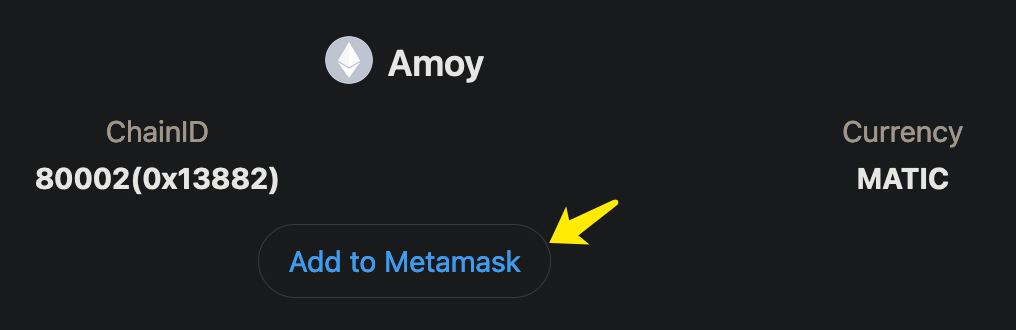
Select Add to Metamask. Your MetaMask wallet opens.
-
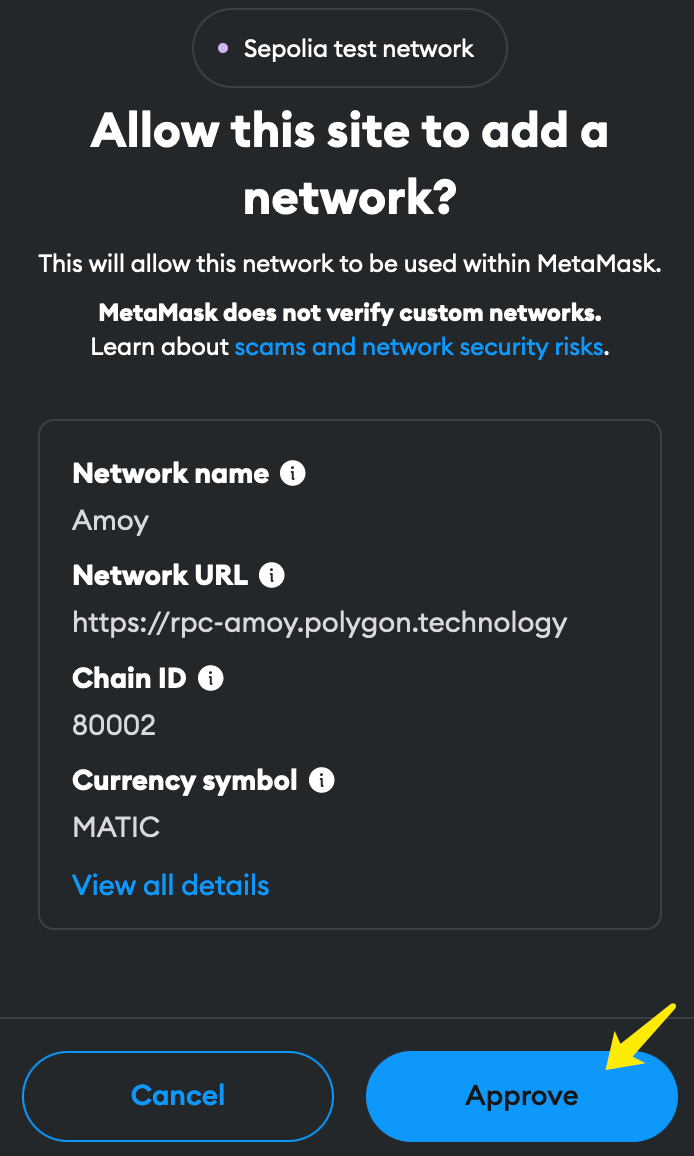
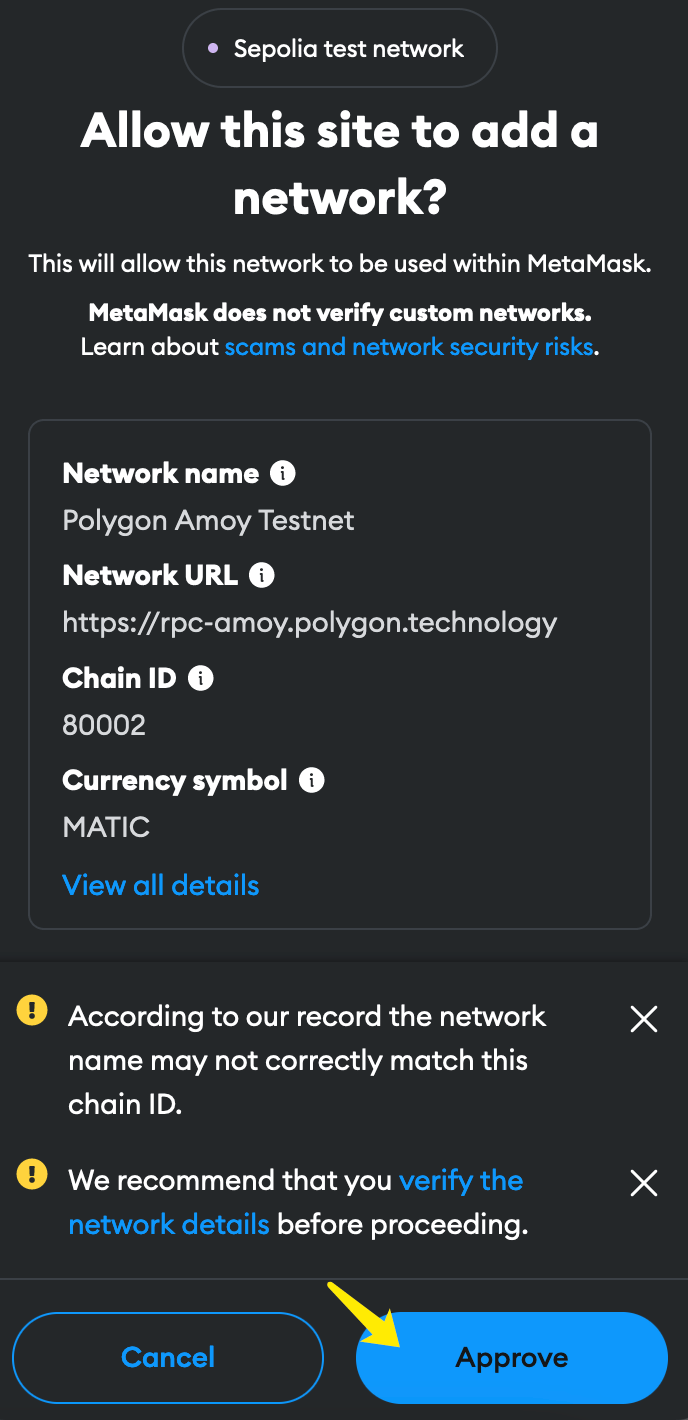
Select Approve. ChainList adds the network RPC URL, chain ID, and other configuration to MetaMask.
-
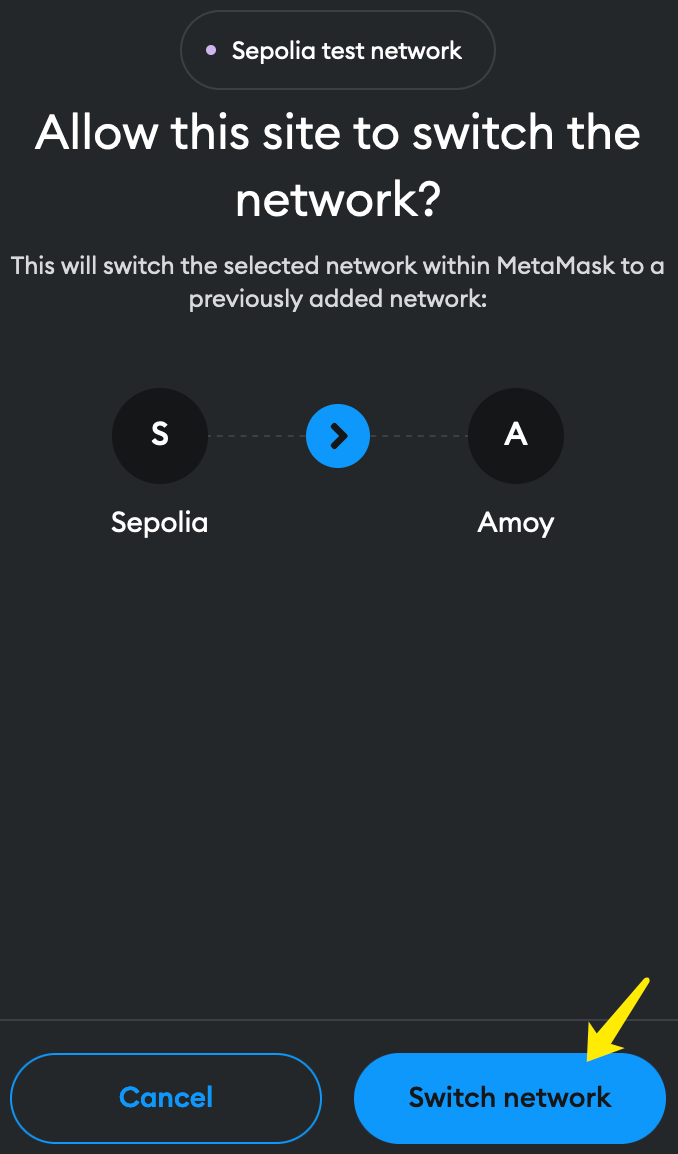
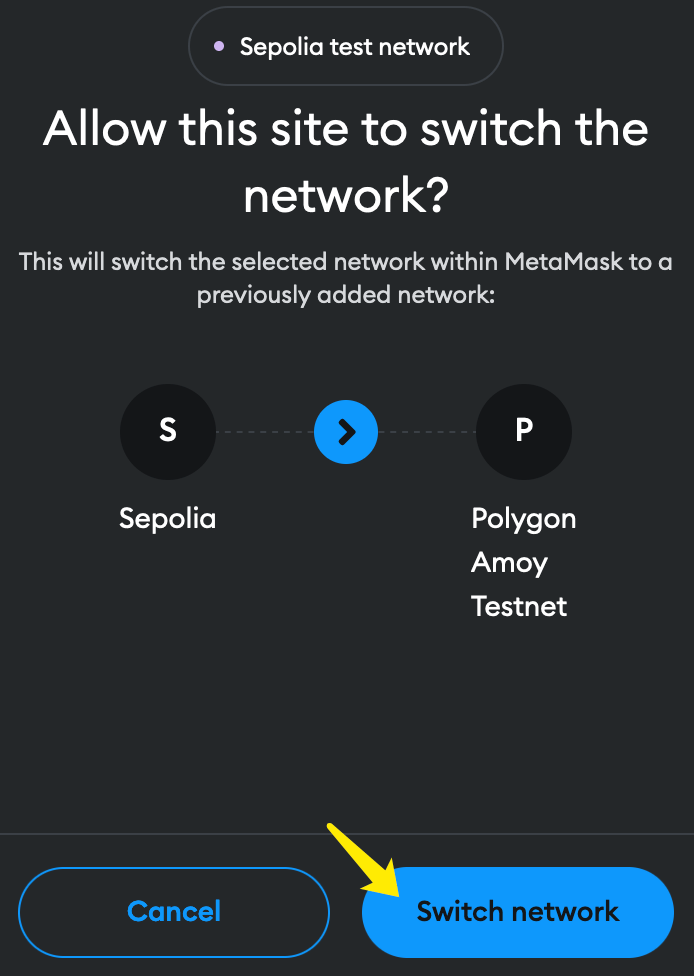
Select Switch network to activate the network in MetaMask.
-
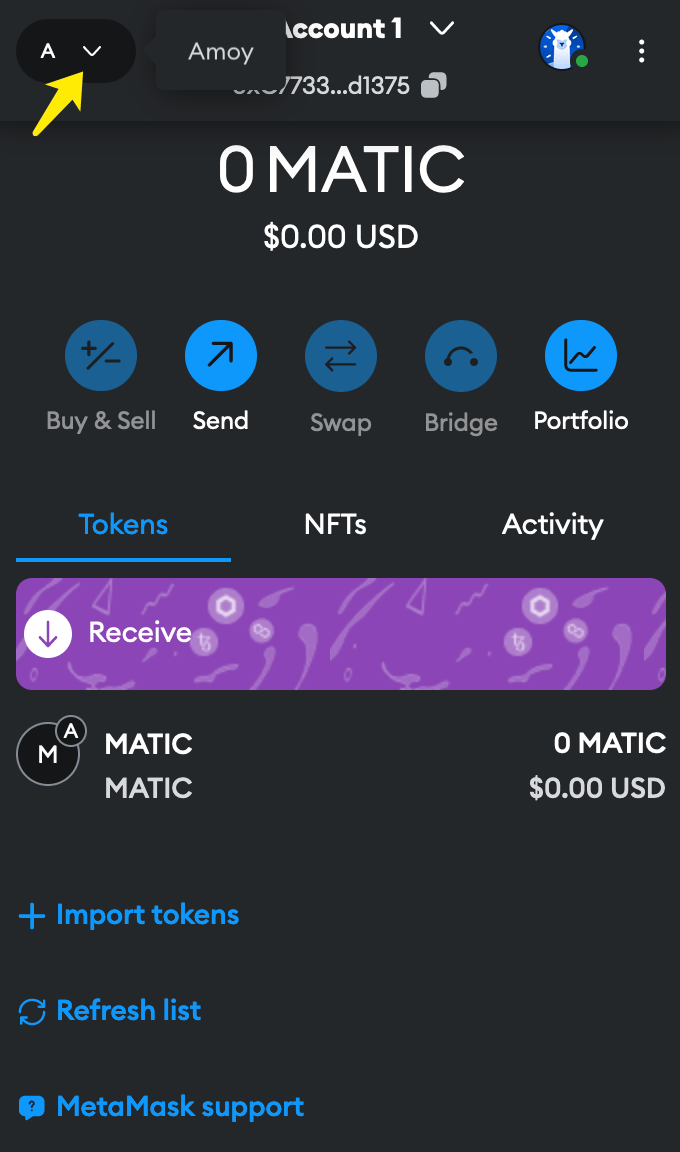
Your balance on the selected network appears in MetaMask. Use the network drop-down in the top-left corner to switch between networks.
Polygonscan
- Go to polygonscan.com.
-
Select the network from the drop-down list in the top-right corner of the home page.
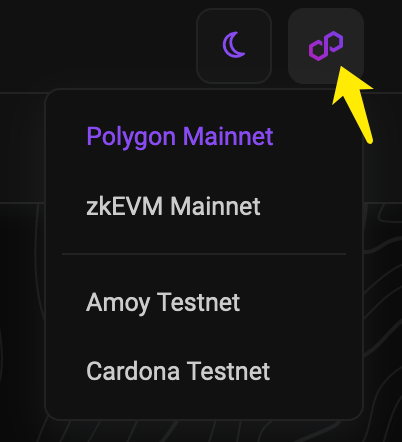
- The explorer reloads for the selected network.
-
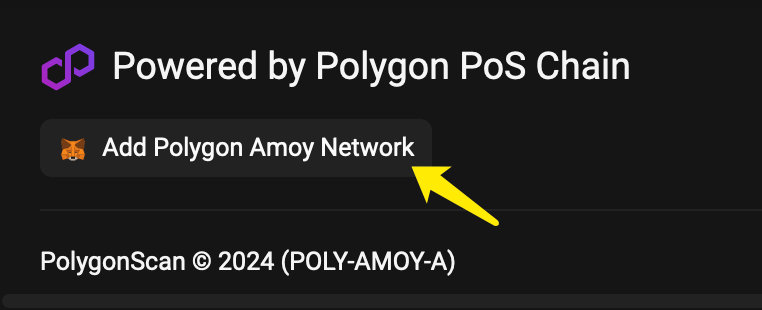
Scroll to the bottom of the page and select the button that adds the network to MetaMask. For Amoy testnet this button is labeled Add Polygon Amoy Network.
-
Select Approve in the MetaMask prompt.
-
Select Switch network.
-
Your balance on the selected network appears in MetaMask.