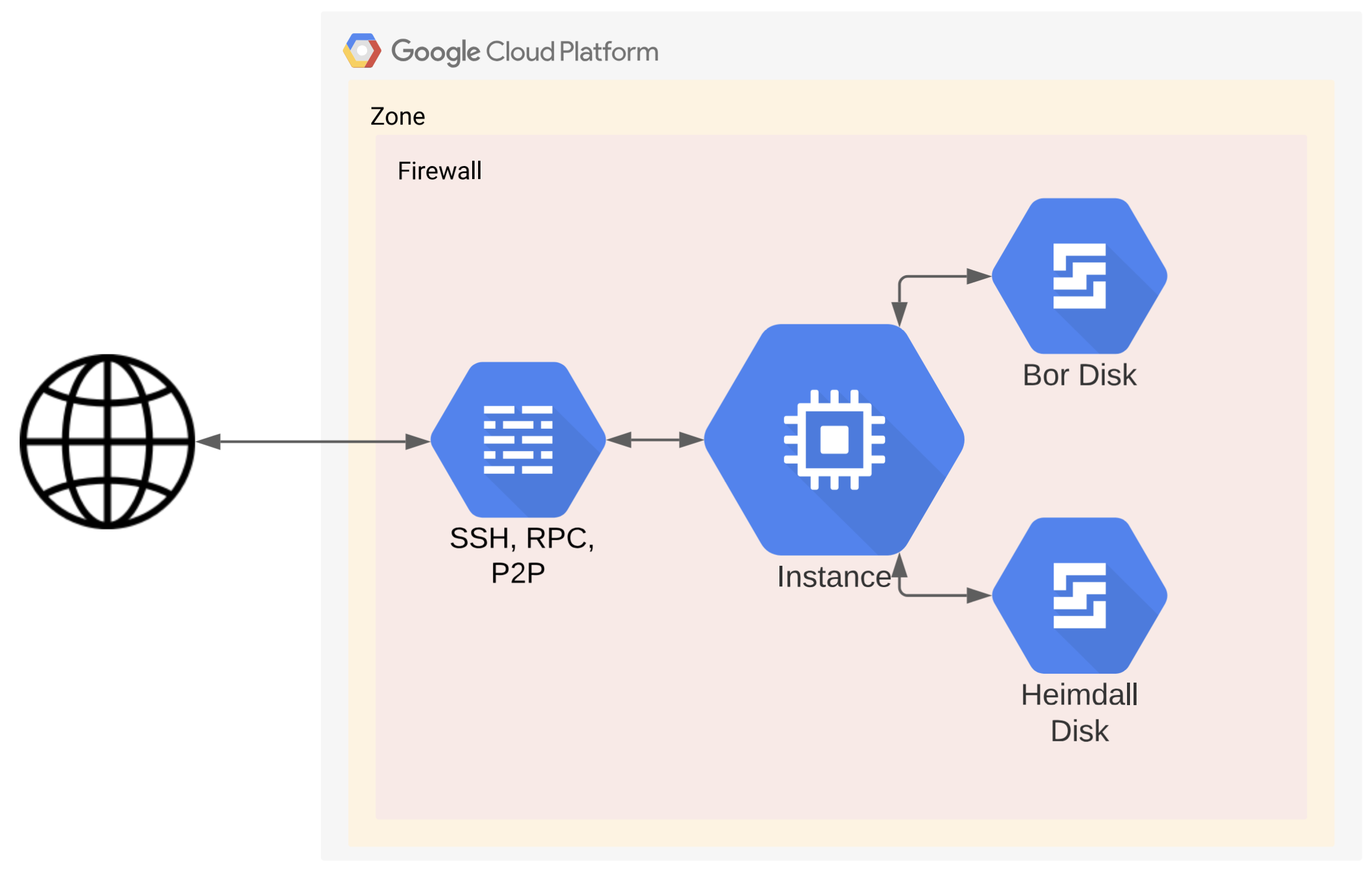
This setup is currently only supported for mainnet. GCP support for deploying Amoy testnet nodes will be available soon.
Deploy VM instance
You may use any of the following ways to create an instance in Google Cloud:- Google Cloud CLI, local or Cloud Shell
- Web Console
- Follow “Before you begin” section to install and configure gcloud command-line tool. Pay attention to default region and zone, choose ones closer to you or your customers. You may use gcping.com to measure latency to choose the closest location.
-
Adjust the following command variables using your favorite editor prior to executing, when required:
POLYGON_NETWORK- choosemainnetnetwork to run.POLYGON_NODETYPE- choosearchive,fullnodenode type to run.POLYGON_BOOTSTRAP_MODE- choose bootstrap modesnapshotorfrom_scratch.POLYGON_RPC_PORT- choose JSON RPC bor node port to listen on, the default value is what used on VM instance creation and in firewall rules.EXTRA_VAR- choose Bor and Heimdall branches, usenetwork_version=mainnet-v1withmainnetnetwork andnetwork_version=testnet-v4withamoynetwork.INSTANCE_NAME- the name of a VM instance with Polygon we are going to create.INSTANCE_TYPE- GCP machine type, default value is recommended, You may change it later if required.BOR_EXT_DISK_SIZE- additional disk size in GB to use with Bor, default value withfullnodeis recommended, You may expand it later if required. You’ll need 8192GB+ witharchivenode though.HEIMDALL_EXT_DISK_SIZE- additional disk size in GB to use with Heimdall, default value is recommended.DISK_TYPE- GCP disk type, SSD is highly recommended. You may need to increase the total SSD GB quota in the region you are spinning up the node.
-
Use the following command to create an instance with the correct hardware and software requirements. In the example below, we deploy Polygon Chain
mainnetfromsnapshotin thefullnodemode:
Login to VM
It will take a couple of minutes to install all the required software, and a couple of hours to download a snapshot when chosen.-
You should see working
borandheimdalldprocesses filling up additional drives. You may run the following commands to check it. -
You may use the following command to watch the installation progress, it’s really handy in case of
snapshotbootstrap:UseControl+a dkey combination to disconnect from progress review. -
You may use the following commands to get Bor and Heimdall logs:
Blockchain data is saved onto additional drives which are kept by default on VM instance removal. You need to remove additional disks manually if you don’t need this data anymore.