> ## Documentation Index
> Fetch the complete documentation index at: https://docs.polygon.technology/llms.txt
> Use this file to discover all available pages before exploring further.
# Using Ansible
> Steps to deploy and manage a Polygon Chain full node using an Ansible playbook.
This guide deploys a full Polygon Chain node using an [Ansible playbook](https://docs.ansible.com/ansible/latest/user_guide/playbooks_intro.html).
## Prerequisites
* Install Ansible on your local machine with Python3.x. The setup doesn't run on Python 2.x.
* To install Ansible with Python 3.x, you can use pip. If you do not have pip on your machine,
follow the steps outlined [here](https://pip.pypa.io/en/stable/). Run `pip3 install ansible` to install
Ansible.
* Check the [Polygon Chain Ansible repository](https://github.com/0xPolygon/node-ansible#requirements) for requirements.
* You also need to ensure that Go is *not installed* in your environment. You will run into issues if you attempt to set up your full node through Ansible with Go installed as Ansible requires specific packages of Go.
* You will also need to make sure that your VM / Machine does not have any previous setups for Polygon Validator or Heimdall or Bor. You will need to delete them as your setup will run into issues.
## Full node setup
* Ensure you have access to the remote machine or VM on which the full node is being set up.
> Refer to [https://github.com/0xPolygon/node-ansible](https://github.com/0xPolygon/node-ansible) for more details.
* Clone the [https://github.com/0xPolygon/node-ansible](https://github.com/0xPolygon/node-ansible) repository.
* Navigate into the node-ansible folder: `cd node-ansible`
* Edit the `inventory.yml` file and insert your IP(s) in the `sentry->hosts` section.
> Refer to [https://github.com/0xPolygon/node-ansible#inventory](https://github.com/0xPolygon/node-ansible#inventory) for more details.
* Check if the remote machine is reachable by running: `ansible sentry -m ping`
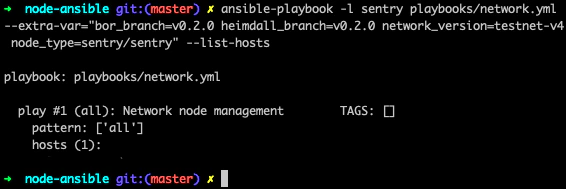
* To test if the correct machine is configured, run the following command:
```bash theme={null}
# Mainnet:
ansible-playbook playbooks/network.yml --extra-var="bor_version=v1.0.0 heimdall_version=v1.0.3 network=mainnet node_type=sentry" --list-hosts
# Testnet:
ansible-playbook playbooks/network.yml --extra-var="bor_version=v1.1.0 heimdall_version=v1.0.3 network=amoy node_type=sentry" --list-hosts
```
 * Next, set up the full node with this command:
```bash theme={null}
# Mainnet:
ansible-playbook playbooks/network.yml --extra-var="bor_version=v1.1.0 heimdall_version=v1.0.3 network=mainnet node_type=sentry"
# Testnet:
ansible-playbook playbooks/network.yml --extra-var="bor_version=v1.0.0 heimdall_version=v1.0.3 network=amoy node_type=sentry"
```
* In case you run into any issues, delete and clean the whole setup using:
```bash theme={null}
ansible-playbook playbooks/clean.yml
```
* Once you initiate the Ansible playbook, log in to the remote machine.
* Please *ensure that the value of seeds and bootnodes mentioned [here](https://docs.polygon.technology/pos/reference/seed-and-bootnodes/) is the same value as mentioned in Heimdall and Bor `config.toml` files*. If not, change the values accordingly.
* To check if Heimdall is synced
* On the remote machine/VM, run `curl localhost:26657/status`
* In the output, `catching_up` value should be `false`
* Once Heimdall is synced, run:
* `sudo service bor start`
If you've reached this point, you have successfully set up a full node with Ansible.
If Bor presents an error of permission to data, run this command to make the Bor user the owner of the Bor files:
```bash theme={null}
sudo chown bor /var/lib/bor
```
## Logs
Logs can be managed by the `journalctl` linux tool. Here is a tutorial for advanced usage: [How To Use Journalctl to View and Manipulate Systemd Logs](https://www.digitalocean.com/community/tutorials/how-to-use-journalctl-to-view-and-manipulate-systemd-logs).
### Check Heimdall node logs
```bash theme={null}
journalctl -u heimdalld.service -f
```
### Check Bor node logs
```bash theme={null}
journalctl -u bor.service -f
```
* Next, set up the full node with this command:
```bash theme={null}
# Mainnet:
ansible-playbook playbooks/network.yml --extra-var="bor_version=v1.1.0 heimdall_version=v1.0.3 network=mainnet node_type=sentry"
# Testnet:
ansible-playbook playbooks/network.yml --extra-var="bor_version=v1.0.0 heimdall_version=v1.0.3 network=amoy node_type=sentry"
```
* In case you run into any issues, delete and clean the whole setup using:
```bash theme={null}
ansible-playbook playbooks/clean.yml
```
* Once you initiate the Ansible playbook, log in to the remote machine.
* Please *ensure that the value of seeds and bootnodes mentioned [here](https://docs.polygon.technology/pos/reference/seed-and-bootnodes/) is the same value as mentioned in Heimdall and Bor `config.toml` files*. If not, change the values accordingly.
* To check if Heimdall is synced
* On the remote machine/VM, run `curl localhost:26657/status`
* In the output, `catching_up` value should be `false`
* Once Heimdall is synced, run:
* `sudo service bor start`
If you've reached this point, you have successfully set up a full node with Ansible.
If Bor presents an error of permission to data, run this command to make the Bor user the owner of the Bor files:
```bash theme={null}
sudo chown bor /var/lib/bor
```
## Logs
Logs can be managed by the `journalctl` linux tool. Here is a tutorial for advanced usage: [How To Use Journalctl to View and Manipulate Systemd Logs](https://www.digitalocean.com/community/tutorials/how-to-use-journalctl-to-view-and-manipulate-systemd-logs).
### Check Heimdall node logs
```bash theme={null}
journalctl -u heimdalld.service -f
```
### Check Bor node logs
```bash theme={null}
journalctl -u bor.service -f
```